
From streaming your favourite shows and working from home remotely, to managing smart lights and appliances, almost everything relies on your home Wi-Fi connection. But if your network isn’t properly secured, it can become an open invitation for digital intruders, unwanted bandwidth freeloaders, or malware. Most of my service call outs involve an element of connecting to the home Wi-Fi, and many clients rely on default settings for their modem or router which are often generic devices supplied by their Internet Service Provider (ISP). These default devices and settings are easily found on the Internet, so it is inherently risky to set it all up once and forget about it. I help Perth households keep their tech running smoothly and securely to give clients peace of mind when using the Internet or smart devices in their homes. To help you protect your digital space and secure home Wi-Fi connections, I have put together a straightforward guide on how to lock down your home Wi-Fi connection.
1. Change Your Router’s Default Admin Password
When you pull a new router out of the box, it comes with a default administrator username and password (often something simple like admin and password). Anyone can look up these factory defaults online if they know your router’s brand.
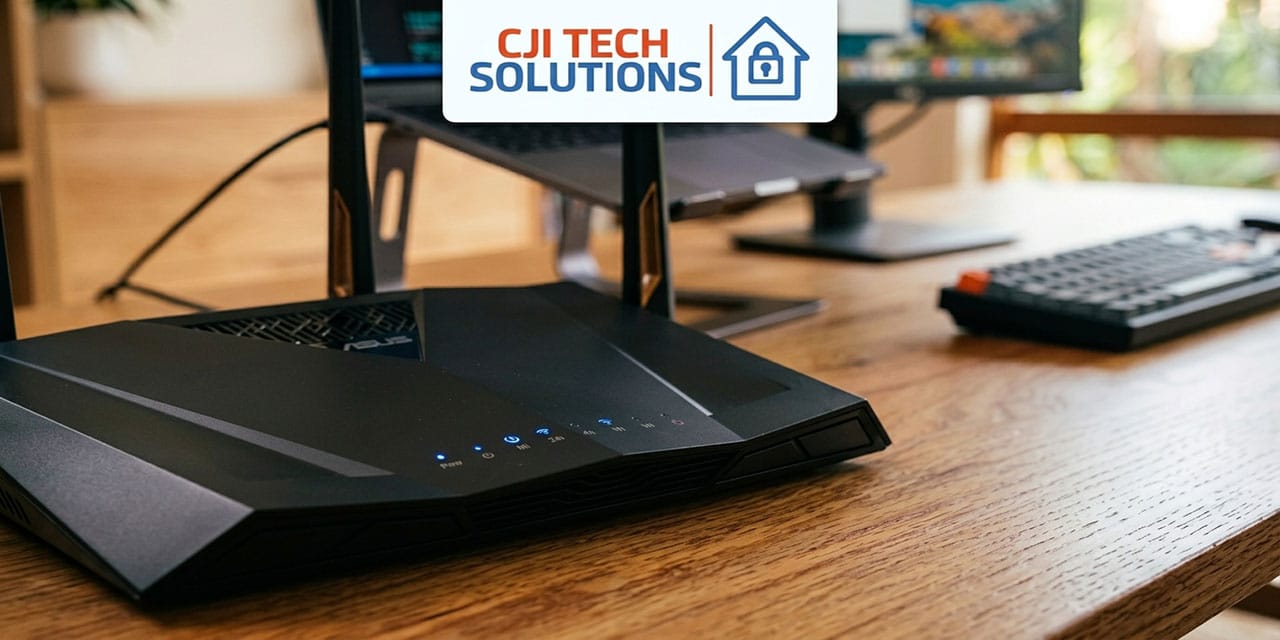
- The Fix: Log into your router’s management settings through a browser via an IP address like 192.168.0.1 or follow the device instructions to login and change the administrator password to something unique, long, and complex. This prevents outsiders from altering your router settings or opening backdoors into your network.
2. Rename Your Wi-Fi Network & Upgrade Your Passwords
Using the default network name (SSID) and password printed on the sticker underneath your router is a common convenience, but it poses a real security risk. Someone intent on hacking can sit in their car on a street, scan for available Wi-Fi networks, and quickly Google search the default credentials for that specific ISP model.
- Change the Network Name (SSID): Replace the default name (e.g., Telstra-ABCD12) with a custom one. This obscures the router make and model from anyone scanning from the street, rendering default password lookups useless.
- Create a Strong Password: Use a custom passphrase combining letters, numbers, and symbols.
- Choose the Right Encryption: If your router supports it, select WPA3 for the best encryption. In saying this, which you choose will depend on the age of the devices you are wanting to connect to your Wi-Fi network. Older and cheaper TVs may not be compatible with WPA3, so you may need to revert to using WPA2 for the Wi-Fi password. Avoid outdated standards like WEP or basic WPA, which are easily cracked.
3. Set Up a Dedicated Guest Network for Smart Appliances
Modern smart homes are full of internet-connected gadgets from smart fridges, robot vacuums, washing machines, and security cameras. While convenient, many of these Internet of Things (IoT) devices lack robust built-in security patches, making them potential targets for hackers.
- The Fix: Enable a Guest Network on your router, ensuring your set its own unique password that is not the same as your primary network, then connect all of your smart appliances and visitor devices to it. Keep your main Wi-Fi network exclusively for trusted laptops, desktop computers, and smartphones where you handle sensitive tasks like online banking. This network segmentation ensures that if a smart device is ever compromised, the attacker cannot access your primary computers or personal files.
4. Don’t Forget Secondary Devices (Like Range Extenders)
When securing a home network, people often focus entirely on the main modem-router and completely overlook secondary hardware like Wi-Fi range extenders, mesh nodes, or old routers repurposed as access points.
During local service calls, it’s surprisingly common to spot unsecured hardware, such as an open TP-Link extender broadcasting without a password, that is left lingering in a property. If a range extender is left unencrypted or misconfigured during setup, it acts as an open, wide-gate entrance for anyone nearby. Because these extenders bridge directly back to your primary network, an open extender can accidentally bypass your main security altogether.
- The Fix: Whenever you install a range extender, mesh node, or secondary access point, always log into its dedicated setup app or web portal to ensure it is protected with its own secure password and encryption matching your main network.
Additional Quick Wins for Wi-Fi Safety
- Keep Your Firmware Updated: Router manufacturers regularly release security patches. Log into your router settings periodically (or enable automatic updates) to ensure your firmware is up-to-date.
- Disable Remote Management: Unless you specifically need to troubleshoot your home network from outside your house, turn off “Remote Management” in your router settings so configuration changes can only be made locally.
- Disable Wi-Fi Protected Setup (WPS): The push-button or PIN shortcut feature (WPS) on routers can be vulnerable to brute-force attacks. It’s safest to disable WPS once your main devices are connected.
The most effective, hassle-free defense is simple: change your router’s default admin password, rename your network away from the factory default, set up a strong passphrase, and secure all secondary extenders. Taking these steps removes you from the target list of opportunistic hackers scanning down your street.
Need a Hand Optimising Your Home Network?
Securing your Wi-Fi and setting up secure network segmentation can sometimes feel overwhelming, especially when dealing with default ISP modems or complex smart home layouts.
If you’d like a professional touch to audit your home network, upgrade your security protocols, or troubleshoot your tech setup, get in touch with me today!
- Phone: 0483148547
- Email: info@cjitechsolutions.com.au